Have an idea for a product but do not know where to begin? This quick guide explains how to use Genki, from creating an account to choosing the right creation mode.
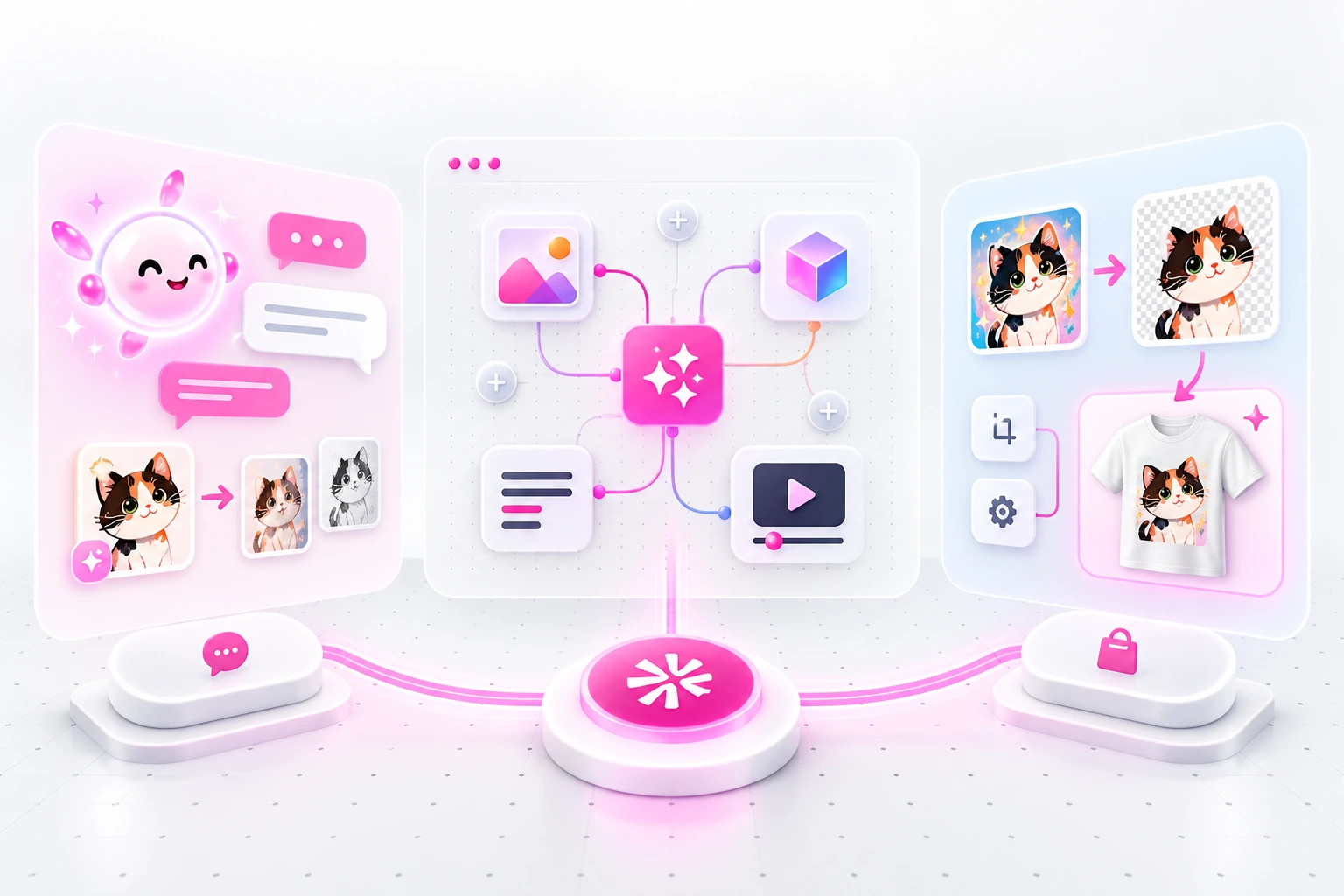
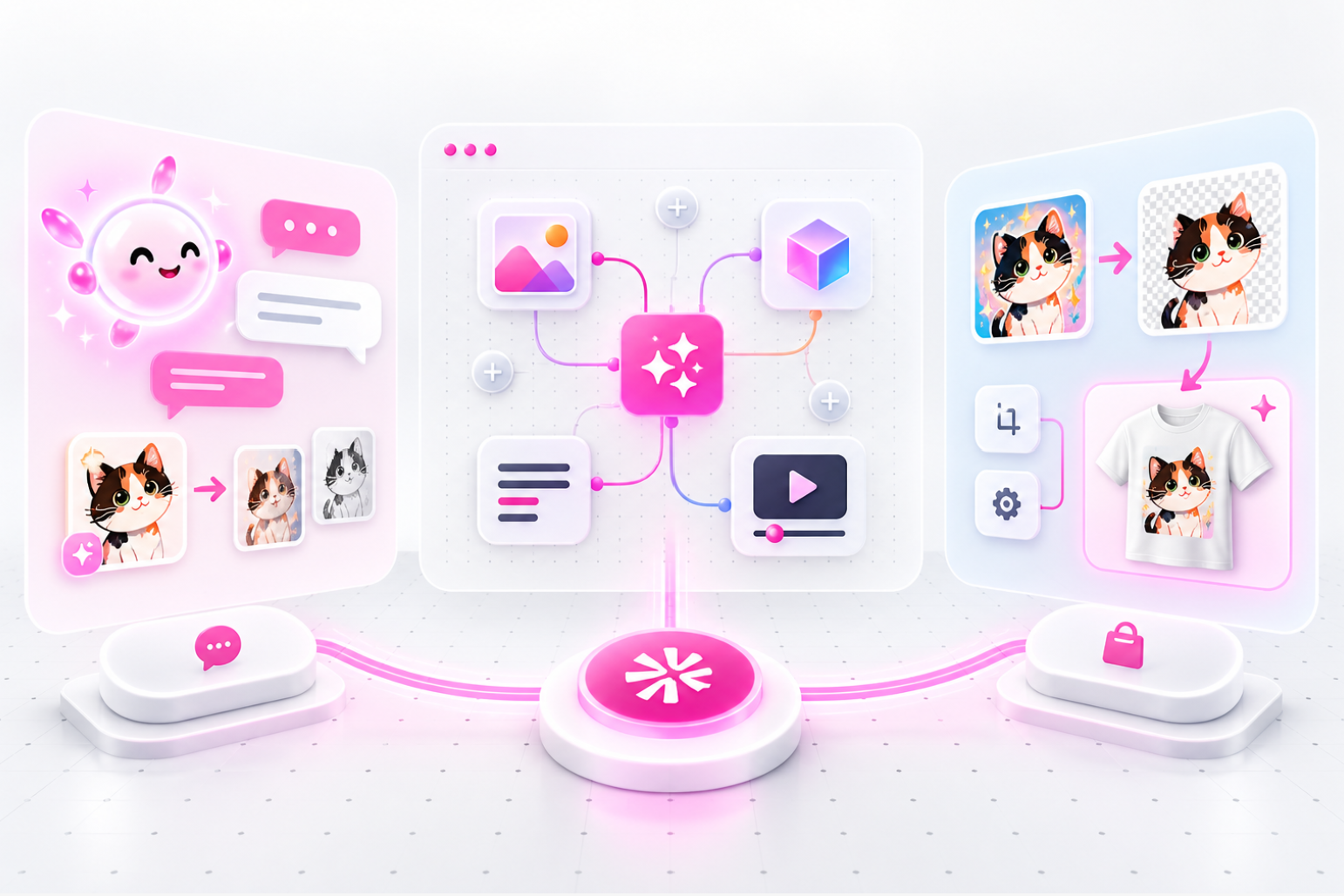
Genki connects AI design, product generation, listing content, and store tools in one workflow. You can start with a description, upload existing artwork, or build each part of the project manually.
💡 You do not need to learn every tool before starting. Choose the mode that matches how much guidance and control you want.
👋 Create Your Genki Account
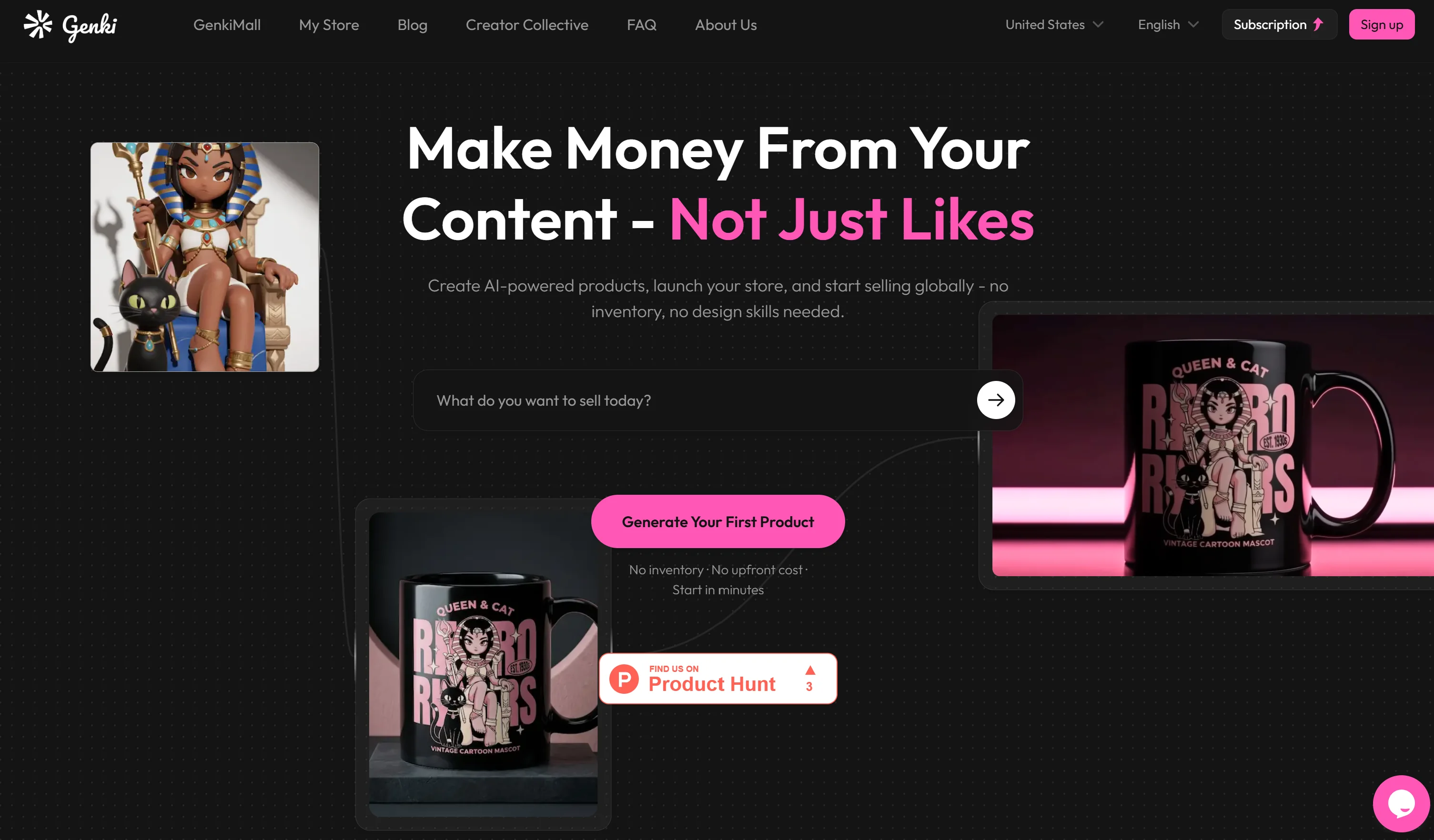
To begin, visit the Genki website and select Sign up.
You can create an account with an email address or a supported third-party account. Once signed in, open Genki-AI from the navigation menu.
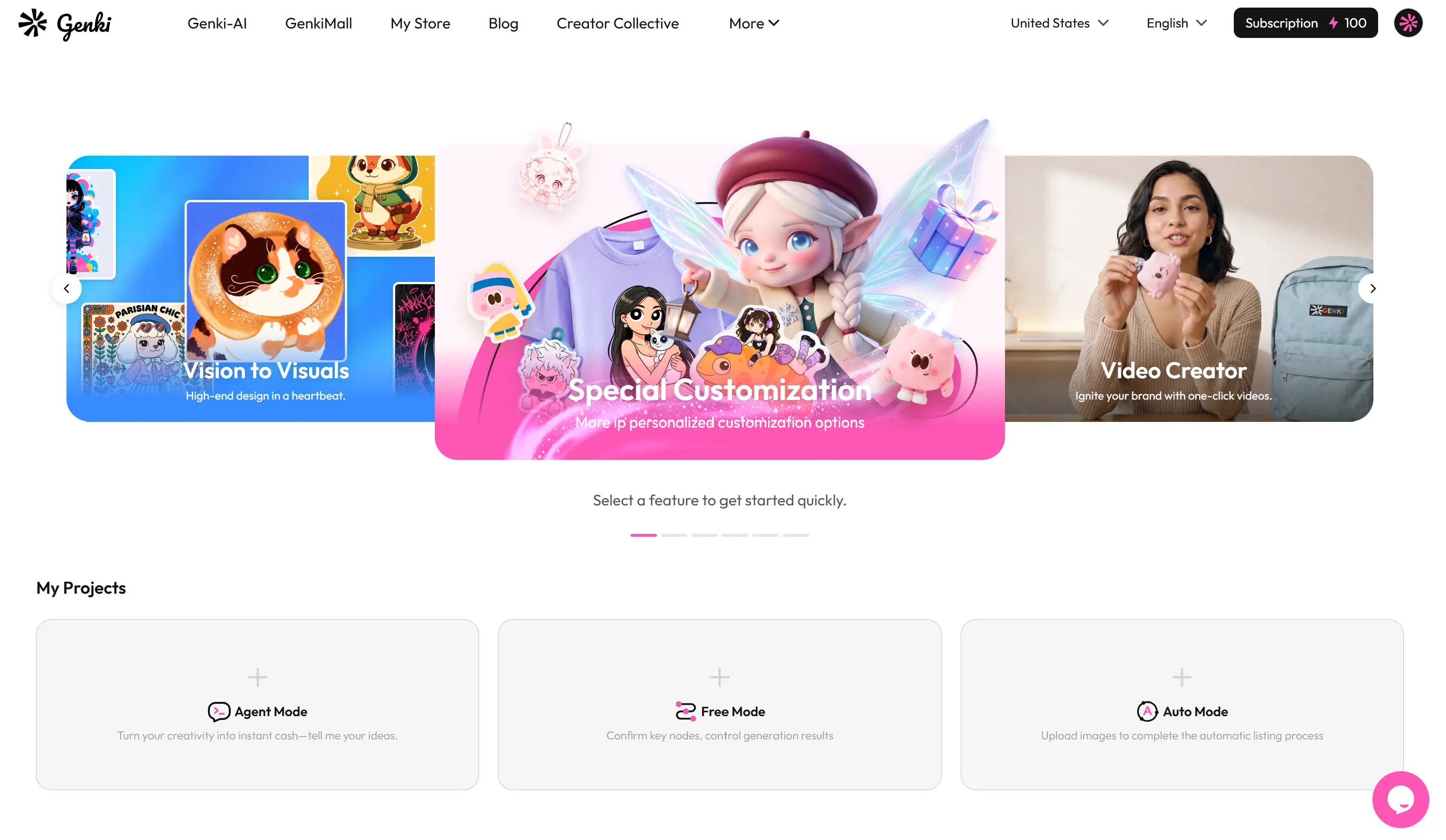
The dashboard displays your existing projects and three ways to start a new one:
- Agent Mode
- Free Mode
- Auto Mode
If this is your first time learning how to use Genki, begin with a simple product idea rather than planning an entire collection.
For example:
“Create a colorful cat illustration for a T-shirt.”
You can always refine the artwork, product type, colors, and listing information later.
✨ Explore the Main Genki AI Features
The main Genki AI features cover several stages of product creation:
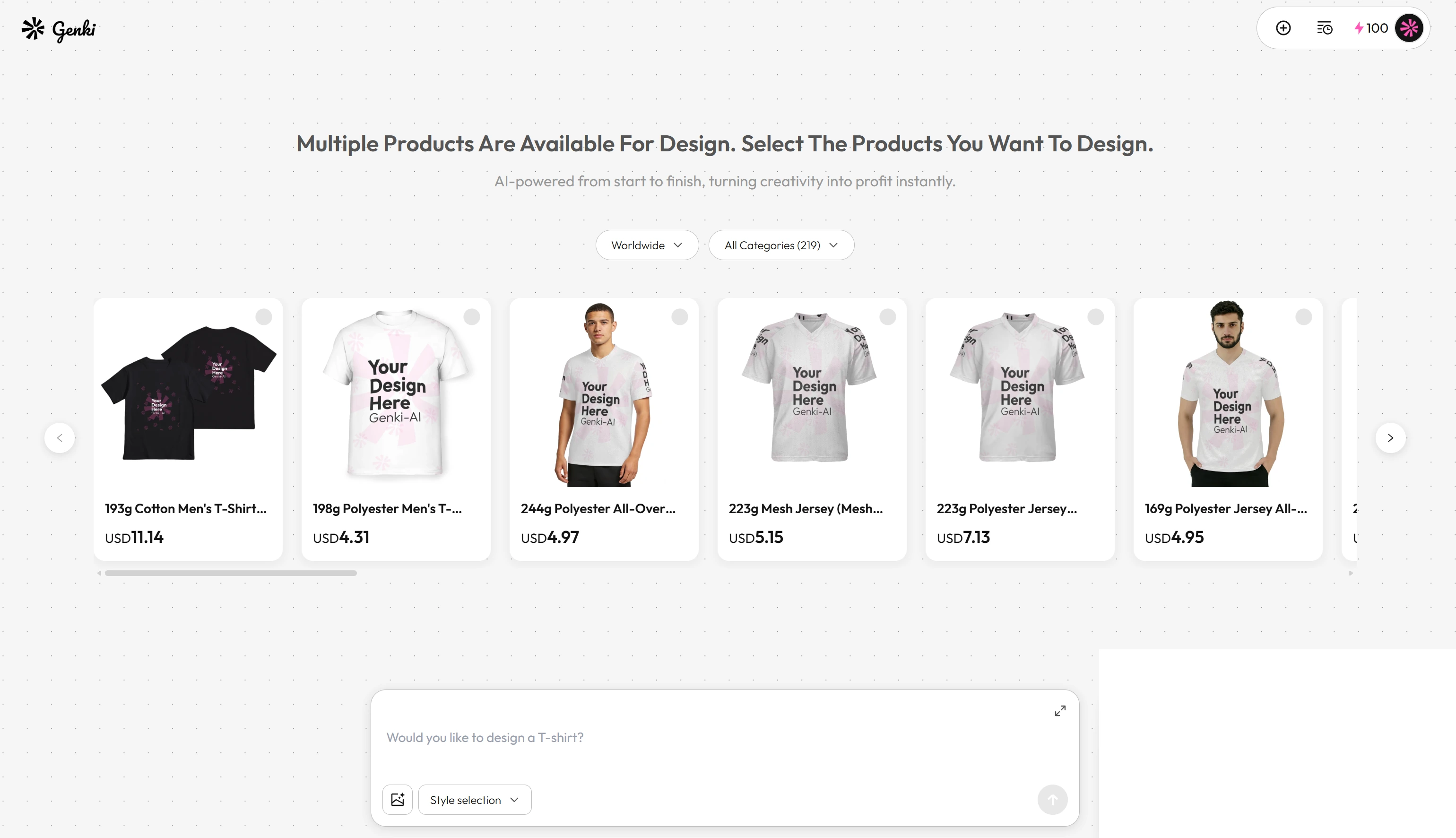
- Product Design: Choose a product and apply your artwork.
- Image Design: Generate or refine visual content.
- Text Generation: Prepare product titles, descriptions, and other copy.
- Video Generation: Turn text or images into promotional videos.
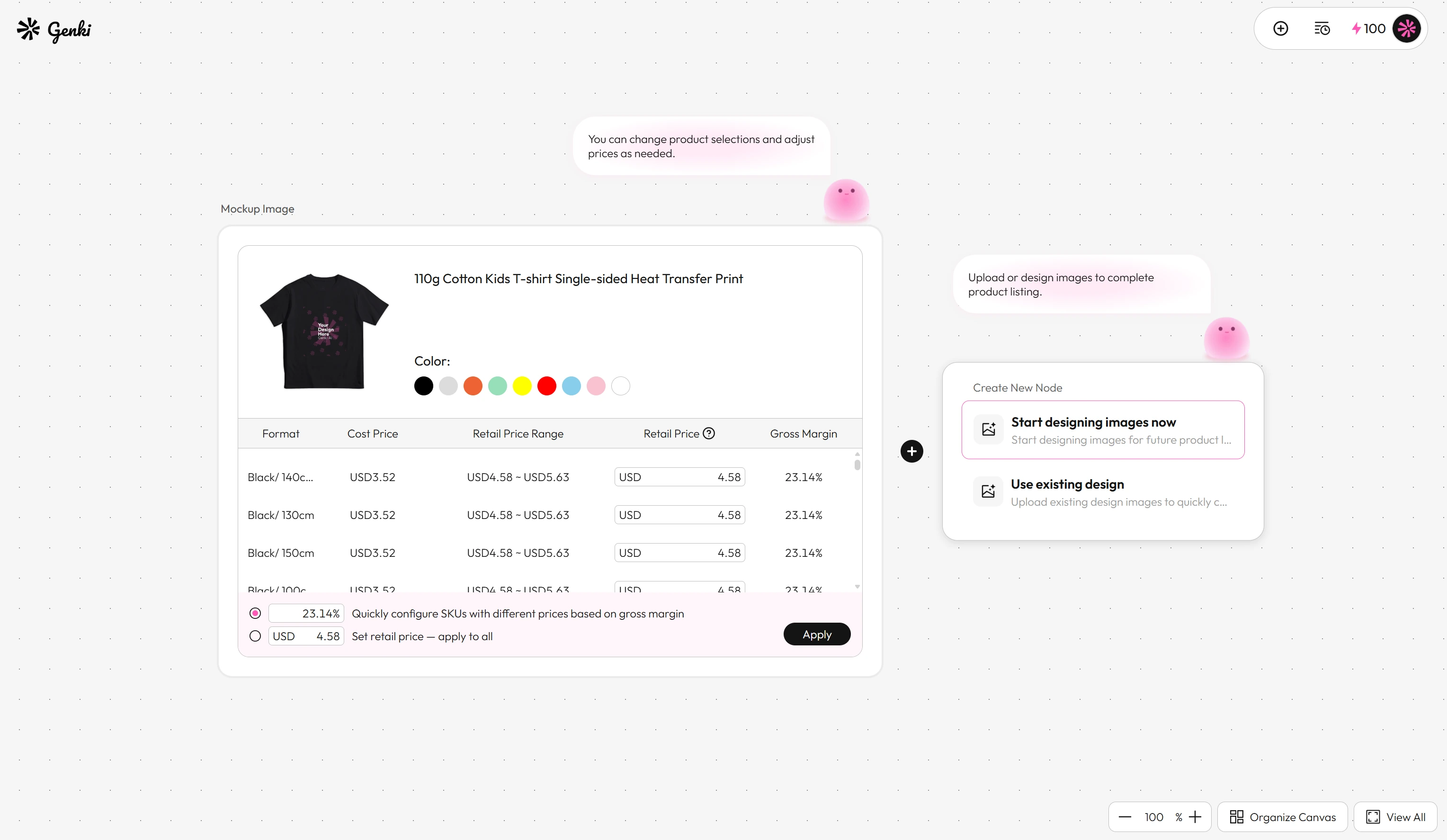
- Product Setup: Select colors, variants, prices, and margins.
- Product Listing: Prepare product information for online selling.
Instead of switching between several disconnected tools, creators can move from an idea to a product within the same project.
If you want to learn more about this process, read How to Launch Products Faster with Genki.
🧭 Choose the Right Creation Mode
A useful Genki tutorial should begin with one important decision: Which mode fits your workflow?
Agent Mode: Let Genki Guide You
Choose Agent Mode when you have an idea but are unsure how to turn it into a product.
Tell the Agent what you want to create, then select from the recommended products and continue through the guided conversation.
Best for:
- Beginners
- Creators with a rough idea
- Fast product exploration
- Users who want step-by-step guidance
🤖 Think of Agent Mode as a creative assistant that helps you decide what to do next.
Free Mode: Build the Workflow Yourself
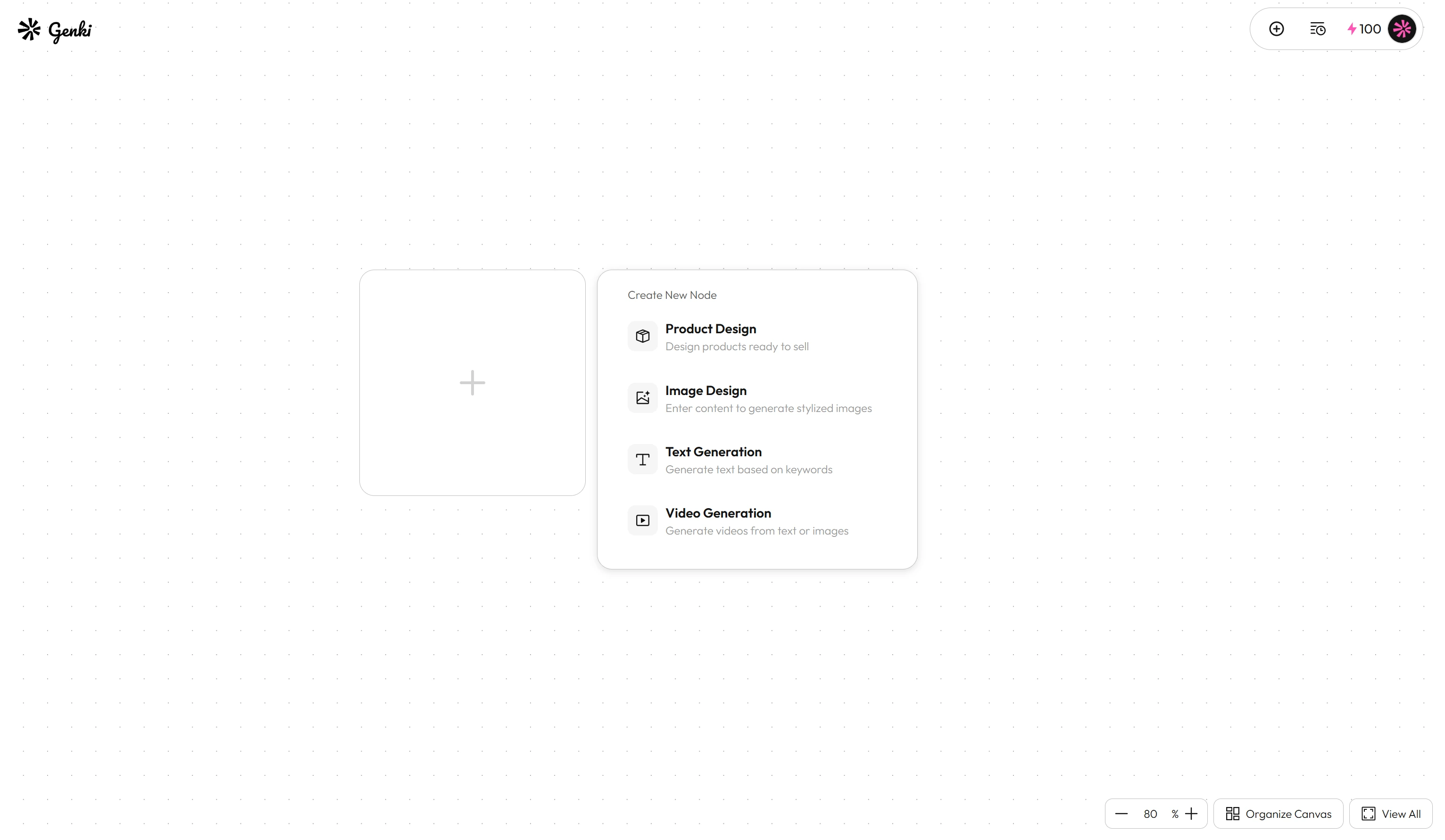
Choose Free Mode when you want more control over the creative process.
On the canvas, you can add separate nodes for Product Design, Image Design, Text Generation, and Video Generation. This allows you to decide which steps to use and how they connect.
Best for:
- Experienced creators
- More complex projects
- Testing different creative directions
- Users who want to review every key stage
🎛️ Free Mode gives you the most flexibility, but it also asks you to make more decisions.
Auto Mode: Move Quickly Toward a Listing
Choose Auto Mode when you already have an image or want the platform to complete more of the product setup automatically.
Upload an existing design or create a new one, select products and variants, set prices, and continue toward a completed listing.
Best for:
- Existing artwork
- Fast product creation
- Preparing several product variants
- Creators who prefer a streamlined workflow
⚡ Auto Mode is the shortest route when your main goal is to prepare a sellable product quickly.
🛍️ Move from an Idea to a Product Listing
The basic process for how to create products with Genki is simple:
💭 Enter an idea or upload artwork → 👕 Choose a product → 🎨 Review the design → 💰 Set variants and pricing → 📝 Prepare the listing
Before completing the product, check:
- Is the design positioned correctly?
- Does it remain clear on every color?
- Are the product variants necessary?
- Does the retail price leave a suitable margin?
- Are the title, description, and images accurate?
After the product is prepared, it can become part of your store or a wider product collection. You can also explore products from other creators through GenkiMall.
❓ Frequently Asked Questions
Which Genki mode is best for beginners?
Agent Mode is usually the easiest starting point because it guides users through product selection and creation.
Can I upload my own artwork?
Yes. You can upload an existing design, apply it to available products, and adjust product options before preparing the listing.
Can I change modes for different projects?
Yes. You can choose a mode based on each project. One idea may benefit from Agent Mode, while an existing design may be faster to prepare through Auto Mode.